Platform-as-a-service is wonderful until the bill scales with your traffic or the free tier sleeps your app. Deploying to your own VPS costs a flat few pounds a month, runs whatever Node version you like, and nothing goes to sleep. This guide takes a Node app from a Git repo to a real domain with valid HTTPS, in about 20 minutes.
Using an AI coding agent? There's a ready-made prompt at the end of this guide. Copy that instead of this article.
What you'll need
- A PrivateByte VPS. The Flare plan ($5.99/mo: 1 vCPU, 2 GB RAM, 25 GB SSD) runs a typical Node app comfortably.
- A domain name you control the DNS for. HTTPS certificates are issued to hostnames, not IP addresses, so this one is genuinely required.
- Your app in a Git repo, listening on a port from
process.env.PORT. - About 20 minutes. Every command is copy-paste.
Step 1: Deploy your VPS
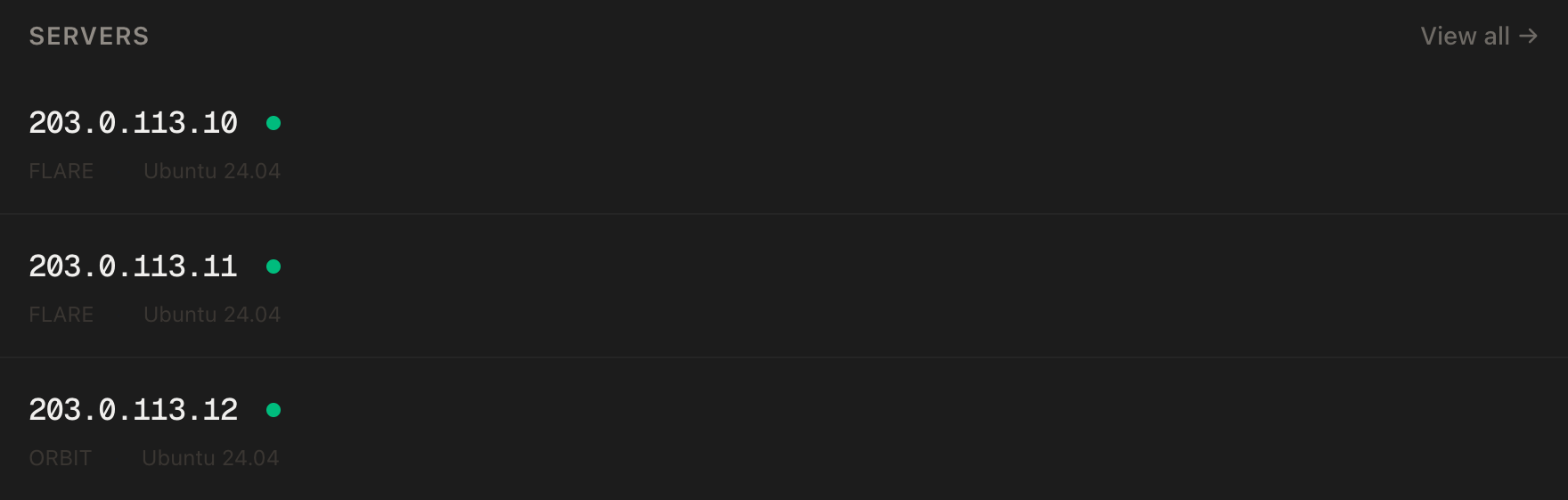
In the PrivateByte dashboard, open the store, choose Flare, pick Ubuntu 24.04, and deploy. Ready in under 60 seconds.
Step 2: Point your domain at the server
Do this first, because DNS takes time to propagate and everything after it depends on the name resolving.
In your DNS provider, create an A record pointing at your server's IP:
| Type | Name | Value |
|---|---|---|
| A | app |
your server's IP |
That gives you app.yourdomain.com. Use @ instead of app if you want the bare domain.
Check it has taken effect before moving on:
dig +short app.yourdomain.com
It should print your server's IP. If it prints nothing, wait and try again; certificate issuance in Step 7 will fail while this is empty.
Step 3: Connect over SSH
ssh root@YOUR_SERVER_IP
Windows users: PowerShell has ssh built in, or use PuTTY. The dashboard also has a browser console if you'd rather install nothing.
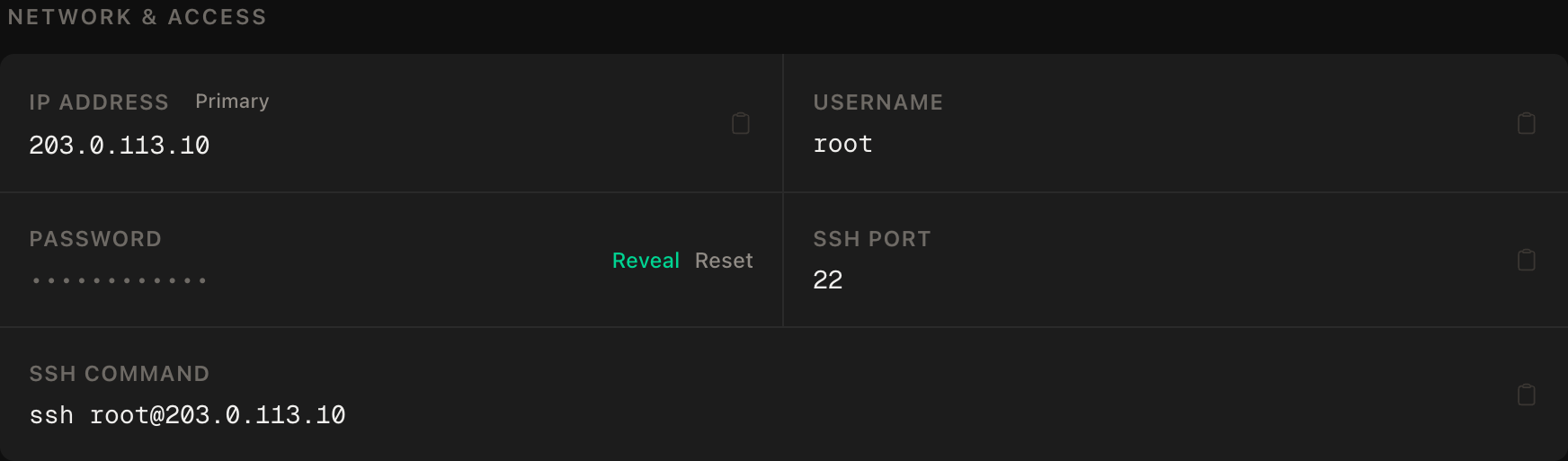
ssh command.Step 4: Create a non-root user
Your app runs code from every dependency in your lock file. None of that needs root:
adduser --disabled-password --gecos "" appuser
rsync --archive --chown=appuser:appuser ~/.ssh /home/appuser
That copies your SSH key across so you can log in as appuser later. Stay as root for now, because the next step installs system-wide packages and appuser deliberately has no sudo rights.
Step 5: Install Node.js, pm2 and Caddy
Still as root:
apt update && apt upgrade -y
curl -fsSL https://deb.nodesource.com/setup_20.x | bash -
apt install -y nodejs git
npm install -g pm2
Then Caddy, which is what gives you HTTPS without touching a certificate by hand:
apt install -y debian-keyring debian-archive-keyring apt-transport-https curl
curl -1sLf 'https://dl.cloudsmith.io/public/caddy/stable/gpg.key' \
  | gpg --dearmor -o /usr/share/keyrings/caddy-stable-archive-keyring.gpg
curl -1sLf 'https://dl.cloudsmith.io/public/caddy/stable/debian.deb.txt' \
  | tee /etc/apt/sources.list.d/caddy-stable.list
apt update && apt install -y caddy
Step 6: Get your app running
Switch to appuser. Everything from here runs as that user:
su - appuser
git clone https://github.com/you/your-app.git
cd your-app
npm ci
npm ci rather than npm install: it installs exactly what your lock file says, which is what you want on a server. npm install is free to resolve newer versions and give you a build that differs from the one you tested.
If your app needs configuration, create a .env and lock it down:
nano .env
chmod 600 .env
Your app must listen on 127.0.0.1, not 0.0.0.0. In Express that means:
const port = process.env.PORT || 3000;
app.listen(port, '127.0.0.1', () => console.log(`listening on ${port}`));
This is the detail that makes the firewall setup in the next step actually true. An app bound to 0.0.0.0 is reachable from the internet on its own port whether or not you opened it in ufw, so your careful firewall rules protect nothing and your app is served over plain HTTP alongside the HTTPS you set up.
Now start it under pm2 and make it survive reboots:
pm2 start npm --name app -- start
pm2 save
pm2 startup
That last command prints another command to run. It needs root, so type exit to drop back to your root session, paste it there, then su - appuser again.
Step 7: Put Caddy in front of it
Back as root:
exit
nano /etc/caddy/Caddyfile
Replace the contents with three lines:
app.yourdomain.com {
    reverse_proxy 127.0.0.1:3000
}
systemctl reload caddy
Caddy requests a certificate from Let's Encrypt on reload, which takes a few seconds. There is no certbot step and no renewal cron, because Caddy renews automatically.
Step 8: Open the firewall
ufw allow OpenSSH
ufw allow 80/tcp
ufw allow 443/tcp
ufw --force enable
Order matters. Allow SSH first and enable the firewall last, or you'll lock yourself out.
Note what is not here: port 3000. Your app is reachable only through Caddy, which is the point of binding it to 127.0.0.1 in Step 6.
Verify it works
Start with the certificate, since that's what usually fails:
curl -sI https://app.yourdomain.com | head -1
You want HTTP/2 200. A certificate error here means Caddy couldn't complete the challenge, which is nearly always DNS.
Now the control most people skip. Confirm your app is not reachable directly:
curl -s --max-time 5 http://YOUR_SERVER_IP:3000 && echo "REACHABLE" || echo "correctly refused"
You want correctly refused. If it returns your app, it's bound to 0.0.0.0 and is being served unencrypted to anyone who knows the IP, regardless of your firewall rules.
Check pm2 and Caddy agree:
pm2 status
systemctl status caddy
Then prove the whole thing survives a restart:
reboot
Wait a minute, reload the site in a browser, and confirm the padlock is still there and the page still loads.
Troubleshooting
Certificate errors, or HTTPS never comes up. Caddy couldn't complete the Let's Encrypt challenge. Check dig +short app.yourdomain.com returns your IP, confirm ufw status includes 80 as well as 443, and read journalctl -u caddy -n 50. Port 80 must be open even though visitors use 443, because the challenge uses it.
502 Bad Gateway. Caddy is up but your app isn't answering. Check pm2 status shows online, and confirm the port in your Caddyfile matches the port your app actually listens on. A mismatch here is the most common cause.
The app works on the IP but not the domain. DNS hasn't propagated, or the A record points somewhere else. dig +short is the arbiter, not your browser, which caches aggressively.
Environment variables are missing after a restart. pm2 caches the environment from when the process was first started. After editing .env, run pm2 restart app --update-env, since a plain pm2 restart reuses the old values.
The app dies under load and pm2 keeps restarting it. Usually memory. Check free -m and pm2 logs app --err. A Node process with a leak will climb until the kernel kills it, and pm2 will faithfully restart it into the same wall.
Do it with an AI agent
If you'd rather hand this to Claude Code, Cursor, or another coding agent, don't paste the article at it. Articles are written for humans, and agents skim the warnings and lose the ordering. Copy this instead, and run it from your own machine with your agent able to SSH out.
Prompt for an AI agent
Deploy my Node.js app to a fresh Ubuntu 24.04 VPS, on a real domain with
automatic HTTPS.

FILL IN FIRST:
- SERVER_IP = <VPS IP from the PrivateByte dashboard>
- DOMAIN    = <hostname, e.g. app.example.com>
- REPO_URL  = <my app's git repo>
- APP_PORT  = <the port my app listens on, usually 3000>

STEPS:
1. SSH to root@SERVER_IP. Confirm Ubuntu 24.04 before changing anything.
2. Check DNS FIRST: "dig +short DOMAIN" must return SERVER_IP. If it does
   not, STOP and tell me. Everything downstream depends on it and finding out
   at the certificate step wastes the whole run.
3. Create user "appuser", copy my SSH key to it, and do all app work as that
   user. It has no password and no sudo, so run system installs as root first.
4. As root install Node.js 20 LTS from NodeSource, git, pm2 globally, and
   Caddy from the official Cloudsmith repo.
5. As appuser clone REPO_URL and run "npm ci", not "npm install", so the
   lock file is respected.
6. Confirm my app binds 127.0.0.1 and not 0.0.0.0. If it binds 0.0.0.0, STOP
   and tell me which line to change. Do not edit my source yourself. An app
   on 0.0.0.0 is served unencrypted on its own port regardless of the
   firewall.
7. Start it with pm2 as appuser, "pm2 save", then "pm2 startup" and run the
   command it prints as root.
8. Write /etc/caddy/Caddyfile with DOMAIN reverse_proxy to 127.0.0.1:APP_PORT,
   then reload caddy. Do not install certbot; Caddy handles certificates.
9. Firewall, in THIS EXACT ORDER:
       a) ufw allow OpenSSH
       b) ufw allow 80/tcp
       c) ufw allow 443/tcp
       d) ufw --force enable
   Do NOT open APP_PORT.

RULES:
- The step 9 ordering is not optional. Enabling the firewall before allowing
  OpenSSH ends my SSH session and locks me out of my own server.
- Port 80 must stay open even though visitors use 443. The certificate
  challenge uses it, and closing it breaks renewal silently, months later.
- Nothing destructive. If /etc/caddy/Caddyfile already has a site block, or
  the app directory exists, STOP and ask rather than overwriting.
- Do not edit my application code. If it will not start, show me the error.

VERIFY, SHOWING ME THE OUTPUT OF EACH:
- "dig +short DOMAIN"                        -> SERVER_IP
- "pm2 status"                               -> online, restarts 0
- "curl -sI https://DOMAIN | head -1"        -> HTTP/2 200, no cert warning
- "curl -s --max-time 5 http://SERVER_IP:APP_PORT" -> MUST refuse or time out.
  If it returns my app, the bind address is wrong and HTTPS is not enforced.
- "ufw status"                               -> OpenSSH, 80, 443, and NOT APP_PORT
- reboot, wait 60s, curl the HTTPS URL again -> still 200

Do not tell me a step succeeded without showing the output that proves it. If
a check fails, stop and report the real error. Do not retry silently or
improvise a workaround, especially around the firewall.
The negative check in that prompt is the one worth stealing. "The site loads over HTTPS" and "the app is only reachable over HTTPS" are different claims, and only the second one is what you actually wanted.
Deploy your VPS
A small Node app is an almost ideal VPS workload: always on, modest memory, and completely predictable in cost, which is the part platform hosting stops being once you have real traffic.
The Flare plan runs a typical app comfortably, and moving up a tier is a couple of clicks if you outgrow it.
- Unmetered bandwidth, no overage
- Free DDoS protection
- Daily automated backups
- Browser console access
Common questions
Do I need a domain name? For HTTPS, yes. Certificate authorities issue certificates to hostnames, not to IP addresses, so a bare IP can only ever serve plain HTTP. A domain is about ten pounds a year and removes an entire category of problems.
Caddy or Nginx? Both work. Caddy is used here because it obtains and renews certificates automatically with no extra tooling, which turns the fiddliest part of this guide into three lines of config. Nginx is more configurable and more widely documented, and needs certbot plus a renewal timer.
How do I deploy updates?
git pull && npm ci && pm2 restart app from your project directory. If you changed environment variables, use pm2 restart app --update-env, because pm2 otherwise reuses the environment from when the process first started.
Can I run several apps on one server? Yes, and it's the main reason to do this. Give each app its own port and its own pm2 process name, then add one site block per domain to the Caddyfile. A 2 GB server handles several small Node apps without complaint.