To host a Discord bot 24/7 it needs to live somewhere that never sleeps, and your laptop isn't it. This guide puts your bot on a VPS with pm2 keeping it alive through crashes and reboots. About 15 minutes, and $5.99 a month.
Using an AI coding agent? There's a ready-made prompt at the end of this guide. Copy that instead of this article.
What you'll need
- A PrivateByte VPS. The Flare plan ($5.99/mo: 1 vCPU, 2 GB RAM, 25 GB SSD) is plenty, because a bot spends its life waiting on the gateway rather than computing.
- A bot token from the Discord Developer Portal.
- Your bot's code, in a Git repo or ready to upload. Node.js and discord.js are the example; the Python path is noted at each step.
- About 15 minutes. Every command is copy-paste.
Step 1: Create your bot and get its token
In the Developer Portal, click New Application, name it, then open the Bot tab and click Reset Token to reveal one.
Treat that token like a password. Anyone holding it controls your bot. If it leaks, hit Reset Token immediately; the old one stops working the moment you do.
Two things on the same page decide whether your bot works at all:
- Gateway Intents. If your bot reads message content, you must enable Message Content Intent here. Without it the bot connects, appears online, and silently receives empty messages. This is the single most common reason a working bot does nothing.
- The invite link. Under OAuth2 → URL Generator, tick
botandapplications.commands, choose its permissions, and open the generated URL to add it to your server.
Step 2: Deploy your VPS
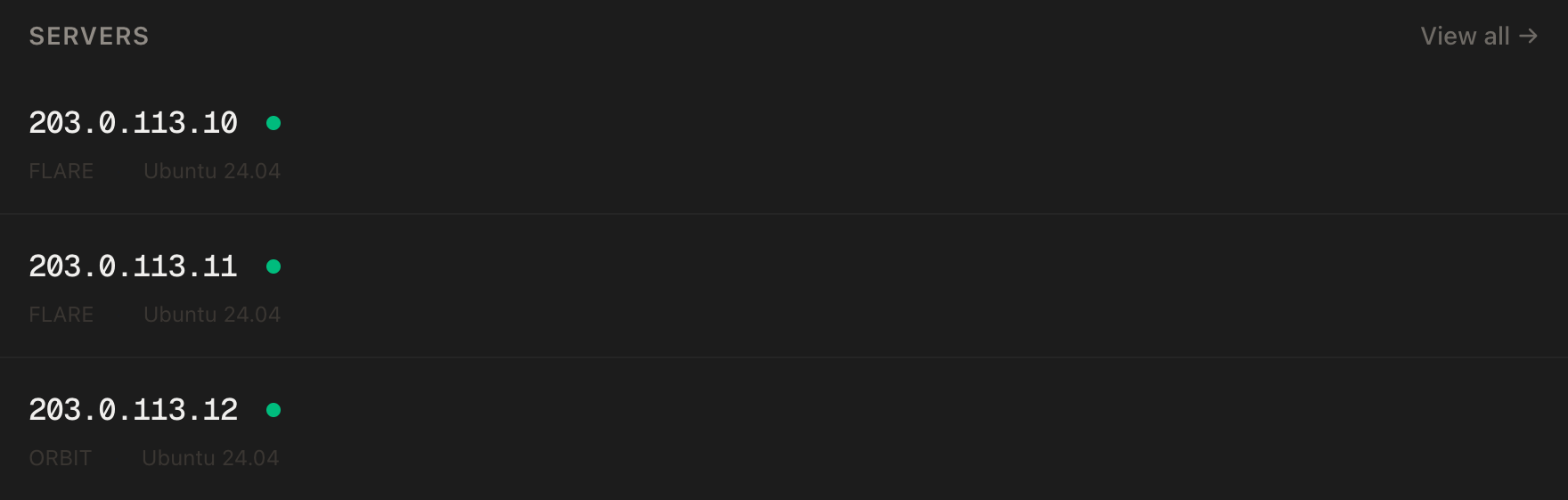
In the PrivateByte dashboard, open the store, choose Flare, pick Ubuntu 24.04, and deploy. Ready in under 60 seconds.
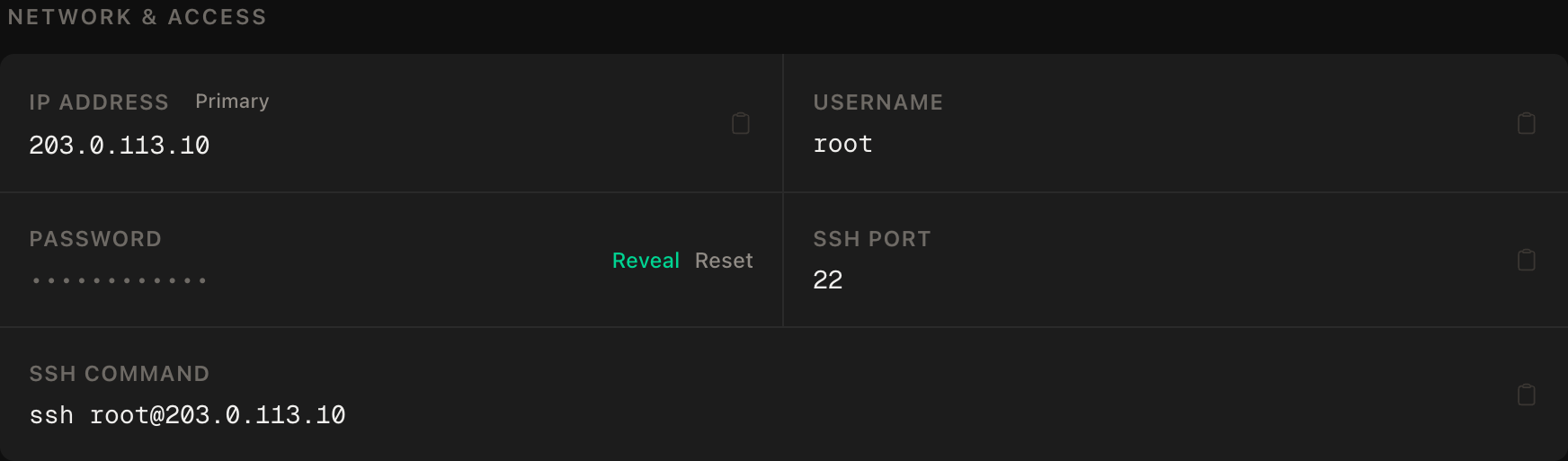
Step 3: Connect over SSH
ssh root@YOUR_SERVER_IP
Windows users: PowerShell has ssh built in, or use PuTTY. The dashboard also has a browser console if you'd rather install nothing.
ssh command.Step 4: Create a non-root user
Running the bot as root means any bug in it, or in a dependency you didn't write, has full control of the server.
adduser --disabled-password --gecos "" botuser
rsync --archive --chown=botuser:botuser ~/.ssh /home/botuser
That copies your SSH key across so you can log straight in as botuser later. Stay as root for now. The next step installs system-wide packages, and botuser deliberately has no password and no sudo rights.
Step 5: Install Node.js and pm2
Still as root, because these go in system-wide directories:
apt update && apt upgrade -y
curl -fsSL https://deb.nodesource.com/setup_20.x | bash -
apt install -y nodejs git
npm install -g pm2
Python instead: apt install -y python3 python3-pip python3-venv git
Step 6: Get your code onto the server
Switch to botuser now. Everything from here runs as that user:
su - botuser
git clone https://github.com/you/your-discord-bot.git
cd your-discord-bot
npm install
Python: python3 -m venv .venv && .venv/bin/pip install -r requirements.txt
No repo? Copy it up from your local terminal instead:
scp -r ./your-discord-bot botuser@YOUR_SERVER_IP:~/
Step 7: Store the token safely
Never hard-code it. Create a .env file in your project directory holding the token:
DISCORD_TOKEN=your-token-here
Make it with nano .env, paste that line, save and exit. Then restrict the file so only your user can read it:
chmod 600 .env
Read it with dotenv (process.env.DISCORD_TOKEN) or python-dotenv (os.getenv("DISCORD_TOKEN")). Add .env to .gitignore before you commit anything.
Step 8: Keep it alive with pm2
node index.js dies the moment you close your SSH session. pm2 keeps it running, restarts it on crash, and brings it back after a reboot.
As botuser, from your project directory:
pm2 start index.js --name discord-bot
pm2 save
pm2 startup
That last command prints another command for you to run. It needs root, and botuser has no sudo rights, so type exit to drop back to your root session, paste it there, then su - botuser again. Skip it and the bot won't survive a reboot.
Python bots: pm2 start .venv/bin/python --name discord-bot -- bot.py
Verify it works
pm2 status
Status should read online with restarts at 0. A climbing restart count means it's crash-looping, so check pm2 logs discord-bot --lines 50.
Confirm Discord accepts your token. Putting DISCORD_TOKEN in .env does not put it in your shell, so load it first, from your project directory:
set -a; . ./.env; set +a
curl -s -H "Authorization: Bot $DISCORD_TOKEN" https://discord.com/api/v10/users/@me
A response containing your bot's username means the token works and the server can reach Discord.
Now check the bot shows as online in your server and responds to a command. Then reboot the server, wait 30 seconds, reconnect and run pm2 status again. If it's online without you starting it, you're genuinely 24/7 rather than merely currently running.
Troubleshooting
Bot is online but ignores every message. Message Content Intent is off. Enable it in the Developer Portal under Bot → Privileged Gateway Intents, then restart the bot. It receives the events either way, which is why this looks like a code bug rather than a settings one.
Bot responds twice to every command. Two copies are running on the same token, usually a local instance still going on your laptop. Run pm2 list, remove the extra one with pm2 delete <name>, and stop anything running elsewhere.
401 Unauthorized or "An invalid token was provided". The token is wrong, was reset, or has whitespace in it. Check .env for a trailing space or a stray quote.
Cannot find module .... You skipped npm install inside the project directory, or you installed as the wrong user.
pm2 doesn't restart the bot after a reboot. You ran pm2 startup but not the command it printed, or you skipped pm2 save. Do both, in that order.
Bot goes quiet after a few hours. Usually an unhandled rejection killing the process while pm2 restarts it into the same crash. pm2 logs discord-bot --err shows what's failing. Discord's gateway does disconnect periodically by design, and a bot treating that as fatal will die on it.
Do it with an AI agent
If you'd rather hand this to Claude Code, Cursor, or another coding agent, don't paste the article at it. Articles are written for humans, and agents skim the warnings and lose the ordering. Copy this instead, and run it from your own machine with your agent able to SSH out.
Prompt for an AI agent
Deploy a Discord bot to a fresh Ubuntu 24.04 VPS so it stays online 24/7.

FILL IN FIRST:
- SERVER_IP = <VPS IP from the PrivateByte dashboard>
- REPO_URL  = <bot's git repo, or "local" if the code is on my machine>
- RUNTIME   = node | python

STEPS:
1. SSH to root@SERVER_IP. Confirm Ubuntu 24.04 before changing anything.
2. Create user "botuser", copy my SSH key to it, and do all bot work as that
   user. Never run the bot as root. It has no password and no sudo rights, so
   run every system-wide install as root before switching to it.
3. Install the runtime (Node.js 20 LTS from NodeSource, or python3 + venv),
   git, and pm2 globally, all as root.
4. Clone REPO_URL as botuser. If REPO_URL is "local", give me the scp command
   to run from my machine and wait.
5. Install dependencies.
6. Create .env with DISCORD_TOKEN. ASK ME for the token, chmod 600 the file,
   and add .env to .gitignore if one exists.
7. Start the bot as botuser named "discord-bot", run "pm2 save", then run
   "pm2 startup" and execute the command it prints as root.

RULES:
- Never print, echo or log the token. To check it is set, check the variable
  is non-empty, never what it contains.
- Do not enable a firewall unless I ask. If I do, allow OpenSSH BEFORE
  enabling it or we both lose access to the server.
- Nothing destructive. If a user, file or pm2 process already exists, stop
  and ask rather than overwriting.
- Do not edit my bot's source. If it won't start, show me the error.

VERIFY, SHOWING ME THE OUTPUT OF EACH:
- "pm2 status" -> online, restarts 0
- "pm2 logs discord-bot --lines 30" -> no repeating errors
- load .env first ("set -a; . ./.env; set +a"), then run this as botuser:
      curl -s -H "Authorization: Bot $DISCORD_TOKEN" https://discord.com/api/v10/users/@me
  -> my bot's username. Double quotes, not single: the token must expand.
- reboot, wait 30s, "pm2 status" again -> still online without you starting it

If the bot connects but ignores messages, tell me to enable Message Content
Intent in the Developer Portal. Do not try to fix that in code.

Do not tell me a step succeeded without showing the output that proves it. If
a check fails, stop and report the real error. Do not retry silently or
improvise a workaround.
Two things there are worth copying into your own agent work. It forbids the agent from ever echoing the token, and it demands command output rather than a claim of success. Agents are agreeable by default and will report a step as done when it half-worked.
Deploy your VPS
A Discord bot is close to an ideal VPS workload: always on, almost no CPU, tiny memory footprint. The Flare plan at $5.99/mo runs several bots at once and is the most cost-effective option we sell for this.
- Unmetered bandwidth, no overage
- Free DDoS protection
- Daily automated backups
- Browser console access
Common questions
How much does it cost to host a Discord bot? About $5.99/month on a Flare VPS, and one server runs several bots at once. Bots are idle most of the time, so you're paying for availability rather than compute.
Can I run multiple bots on one VPS?
Yes. Give each its own directory, its own .env, and its own pm2 process name. A 2 GB server handles a handful of typical Node or Python bots comfortably.
Node.js or Python? Either. The steps are identical apart from the install command in Step 5 and the start command in Step 8. pm2 runs Python processes perfectly well.
Will my bot stay online if I turn off my computer? Yes, that's the entire point. The VPS is a separate always-on machine. Provided you completed Step 8, it also survives the server itself rebooting.